Getting Started with Rapidminer AI Python SDK
Quick Start Guide
The Rapidminer AI Python SDK consists of two major components, i.e.
Python Extension Loader (PEL): A Java extension that manages the Python extensions in the Rapidminer AI platform. The Python Extension Loader is a must to install and use the Python extensions and is automatically installed with AI suite products 2025.1+ or available separately on the Rapidminer marketplace to download.
Python SDK package: The rapidminer-ai-sdk conda Python package to develop and build Python extensions.
Pre-requisites
The first step is getting equipped with all the tools and setup. You need the following things to develop a Python extension:
- Install your favourite IDE (e.g. VS Code, PyCharm, etc.)
- Miniforge or mambaforge
- Basic knowledge of Python
To test, debug and use the Python extensions, you need the following:
- Rapidminer® AI Studio 2025.0 or later versions with a Units license
- The Python Extension Loader extension installed
Note: The Python Extension Loader comes pre-installed with Rapidminer AI Studio 2025.1 and later.
Installation
The first step to develop a Python extension is to create a new conda environment.
- In your terminal, create and activate a new conda environment and install the rapidminer-ai-sdk package.
conda create -n sample-environment python=3.12
conda activate sample-environment
conda install rapidminer-ai-sdk -c conda-forge
The rapidminer-ai-sdk package supports Python version 3.12 and higher.
Create extension
- create a new directory called sample-extension.
- With the conda environment, run the 'create-extension' command
mkdir sample-extension
cd sample-extension
create-extension
- Follow the instruction in the terminal. Hit enter to choose the default.
Choose the type of project to create: 'blank' or 'sample' (default: sample):
Enter the extension name (default: samples):
Enter the version number (default: 0.0.1):
Enter the author name:
Extension Name: samples
Version Number: 0.0.1
Author Name:
Creating a sample project...
Sample project created with src folder and HelloWorld script.
- Open the extension folder in your IDE.
The create-extension command creates default directory structure with a sample hello-world file.
Build extension
In your terminal, use the build-extension command from the root directory of the project.
On Windows:
build-extension -o "%USERPROFILE%\.AltairRapidMiner\AI Studio\shared\extensions\python-extensions" .
Note: While copying the above command, make sure to correct the extra newline between "AI Studio" on your terminal.
On MacOS/Linux
build-extension -o "~/.AltairRapidMiner/AI Studio/shared/extensions/python-extensions" .
Note: By default, Python extension .zip files are searched for in ~/.AltairRapidMiner/AI Studio/shared/extensions/python-extensions
The output will show the details of the build
==================================================
INFO:   SDK version:          2.0
INFO:   Runtime version:      2.0
INFO:   Extension:            samples
INFO:   Version:              0.0.1
INFO:   Namespace:            pysa
INFO:   Module:               src
INFO:   Environment:          sample-environment
INFO:   License:              None
INFO:   List at root level:   False
==================================================
INFO:   Found 0 dependency in configuration (skipping).
INFO:   Found 0 data object definitions in module 'src'.
INFO:   Found 1 function definitions in module 'src'.
You will find the zip file representing the extension in the output directory. The zip file contains the code, extension.json and env.yml file. The next step now is to load the extension in Rapidminer AI Studio for testing.
Run extension
- Start Rapidminer AI Studio.
- After the launch, Rapidminer AI Studio will check for available Python extensions and will perform certain steps to install required Python distributions (by default via Miniforge), and set up the environment.
Note: It may take sometime to install the conda/mamba distribution and environment depending on your internet connection.
Check if the Python extension is loaded correctly by clicking Extensions -> About Installed Python Extensions.
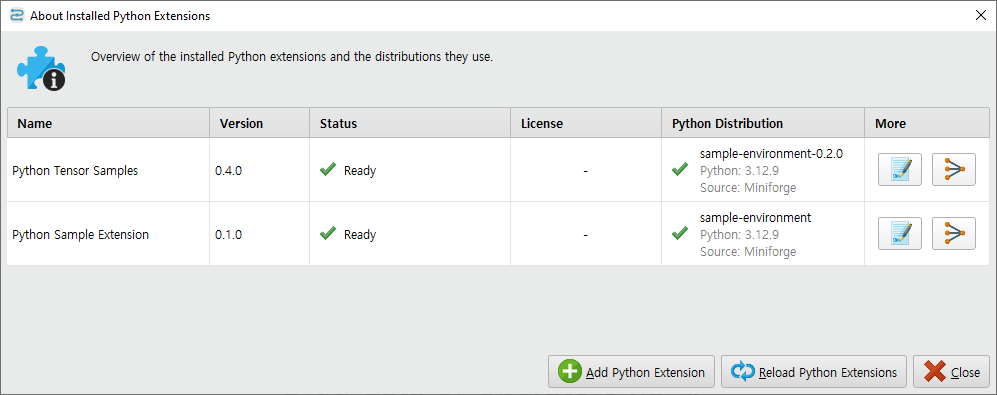
If the environment setup was successful, the extension will be in the "Ready" state. You should see the Hello World operator under the Extensions operator group in Rapidminer AI Studio.
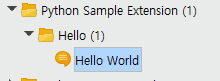
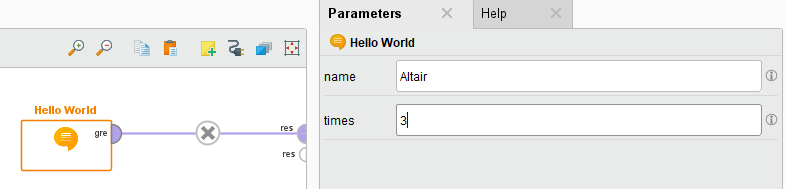
Create a process with the operator
- Drag the operator to the process canvas and connect the output port. Add the value in the parameter name and hit Run.
the output should be
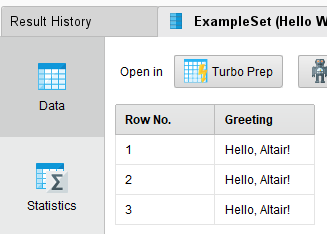
Congratulations on creating your first operator and extension!
Next Steps
To expand your knowledge and build more advanced extensions:
- Explore the Core Concepts behind the Python SDK architecture.
- Follow our tutorial to create basic operators and advanced operators
- Custom Data Objects for working with complex data structures.
Happy coding with the Rapidminer AI Python SDK!